
Hull Properties
To access this screen:
-
Select a plot projection (3D type).
-
Select a plot projection (Plan or Section type, with Only display in 3D views set to No).
-
Display the Format Display screen using the "fdd" quick key combination.
-
Select the Hull Properties tab.
Note: A hull string is shown in 3D-viewed projections by default. You can use this screen to make it appear in other axis-view-oriented projections.
The Hull Properties screen lets you format the appearance of the outer hull of a data object, optionally displayed.
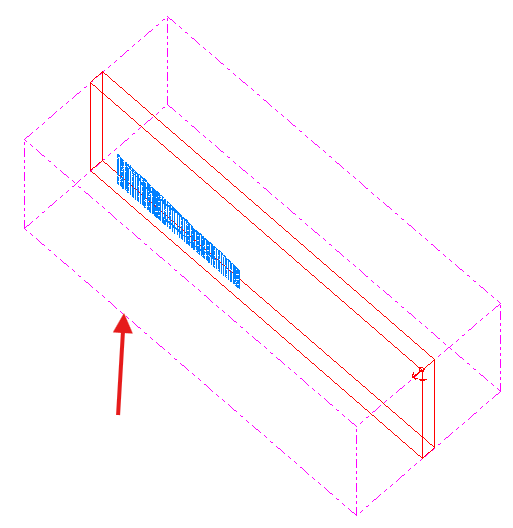
A block model shown in section with a pink hull displayed
Settings relating to the size of the cuboid hull are read-only if Fit to data is set to Yes, otherwise you can define your own cuboid using From and To coordinates for each axis. Mid Point and Span settings describe the centroid position and lengths of each side of the cuboid respectively, and are always read-only.
Appearance settings can be adjusted:
-
Color
-
Line Style
-
Hide – Use this to hide the hull in all projections.
-
Only display in 3D views – Yes by default, meaning a hull only appears in 3D-type projections (not aligned to a major axis). If set to No, the hull can also appear in Plan View and Section projection types. See Projection Overlay Types.
You can also choose whether to share data property changes with other instances of the same data in other logs, reports, tables, sheets and projections.
-
Not shared – Data changes are only represented in the target projection, log sheet, report or table.
-
Within sheet – Data changes automatically update all other instances of the data item within the plot sheet (all projections).
-
Within document – Data changes automatically update all other instances of the data item within all projections of all plot sheets.
Related topics and activities:
